TouchTable Usage Instructions
Complete Guide for Professional Use
Discover how to optimally use, maintain and troubleshoot your TouchTable. From basic operation to advanced features - everything you need for successful use.
What's in the box?
Everything you need for immediate use of your TouchTable
TouchTable System
Complete interactive table with high-quality touchscreen, powerful processor and professional stand. Suitable for both mobile (Standard) and portable (Go) use.
Cables & Connectivity
All necessary power cables and HDMI cables for easy connection to external devices and network connections.
User Manual
Comprehensive manual with step-by-step instructions, troubleshooting tips and maintenance guidelines for optimal use.
Getting Started
Follow these steps to set up and use your TouchTable
Installation
Step 1: Connect the TouchTable to a grounded outlet with the included power cable.
Step 2: Press the power button under or behind the screen to start the system.
Step 3: The TouchTable starts automatically and loads the default environment or application.
Step 4: Follow the setup wizard for initial configuration and network connection.
Usage
Multi-touch support: TouchTable responds to touch with finger, stylus or gloves.
Gestures: Use multiple fingers to zoom, scroll, drag or rotate (if supported by the application).
Tip: Work with clean, dry hands for optimal touch responsiveness.
Support: Consult the manual for specific application instructions.
TouchTable Applications
Discover the many possibilities of your TouchTable in different sectors
Presentations & Meetings
Interactive presentations, brainstorming sessions and team meetings with multi-touch support.
Education & Training
Educational content, training and workshops with visual and interactive elements.
Crisis Management
Real-time monitoring, situation overviews and coordination during emergencies.
Participation & Public Input
Engaging citizens in planning, public input procedures and participatory decision-making.
Trade Show Stands & Events
Interactive displays at trade shows, events and exhibitions.
GIS & Maps
Geographic information systems, map analysis and spatial visualization.
Maintenance & Tips
Keep your TouchTable in optimal condition with these maintenance tips
Use the TouchTable preferably indoors, out of direct sunlight, on a stable and flat surface for optimal performance.
Keep the ambient temperature between 10°C and 35°C and humidity between 20% and 80% for optimal operation.
Turn off the TouchTable when not in use for more than an hour to extend its lifespan and save energy.
Clean the screen regularly with a dry microfiber cloth. Avoid cleaning agents with alcohol or abrasives.
Check cables and connections monthly for loose connections or damage.
Keep the software up-to-date by regularly checking for updates via system settings.
Troubleshooting
Common problems and solutions
No display?
Check if the power cable is properly connected and if the power button is pressed. Also check the HDMI connections.
Solution: Ensure stable power supply and check all cables for loose connections.
No internet?
Check the network connection via system settings and check if the WiFi or ethernet cable is properly connected.
Solution: Restart the network connection or check the router settings.
Touch not responsive?
Clean the screen with a dry microfiber cloth and check that no objects are on the screen.
Solution: Restart the TouchTable and check the touch settings in the system.
Audio not working?
Check the volume control and audio outputs. Check if the correct audio device is selected.
Solution: Check the audio settings and test with different audio devices.
System running slow?
Close unnecessary programs and check available storage space. Restart the system if necessary.
Solution: Perform system maintenance and check for available updates.
Screen too dark/bright?
Adjust the brightness via system settings or the physical buttons on the screen.
Solution: Use the brightness control and check the ambient lighting.
Need help?
Our support team is ready to help you with all your TouchTable questions and problems.
TouchTable in action
From trade shows to education, from crisis management to participation - discover how TouchTable is deployed.
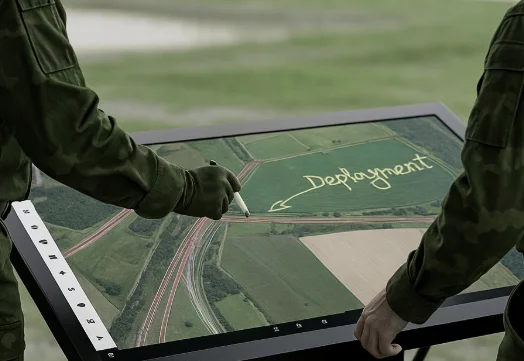
Crisis Management
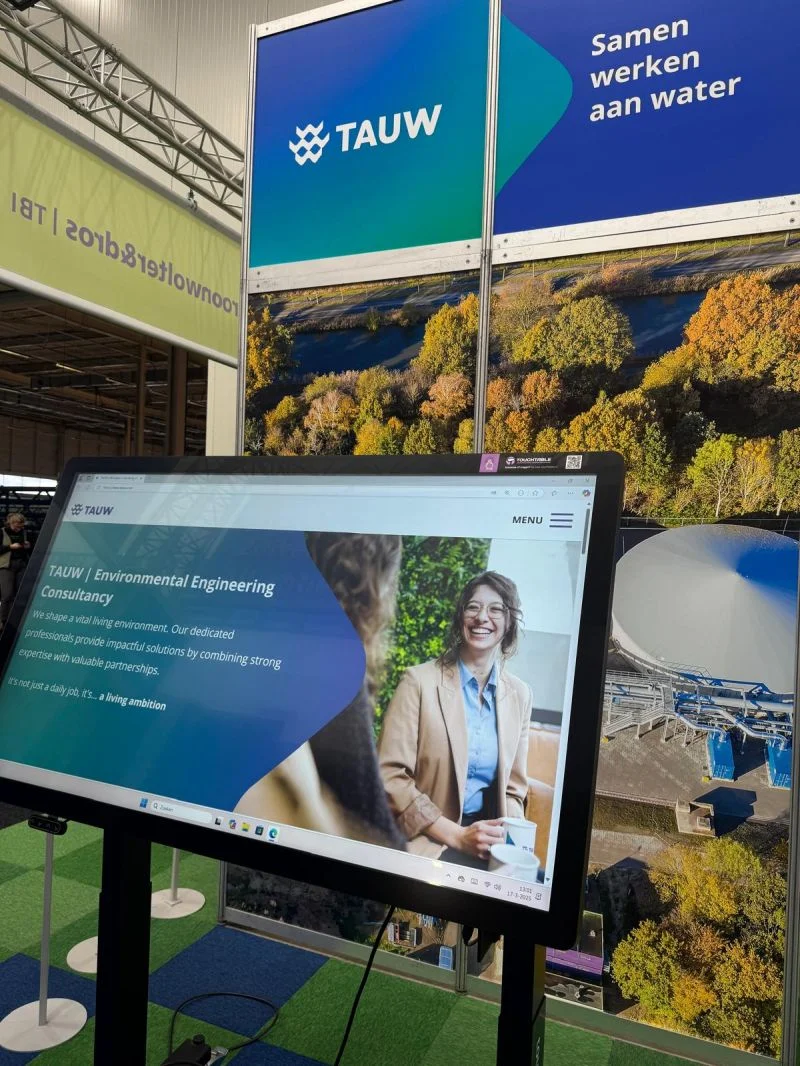
Education
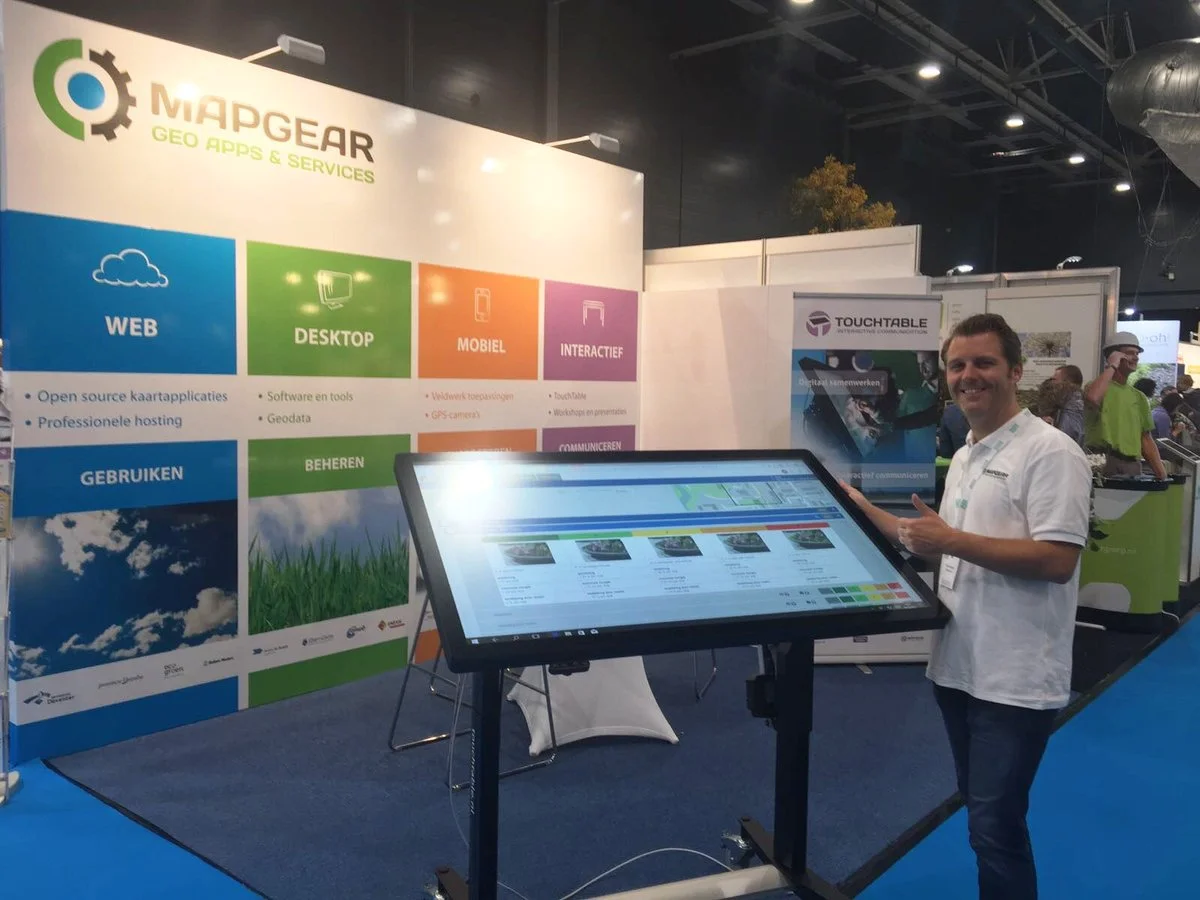
Trade Shows
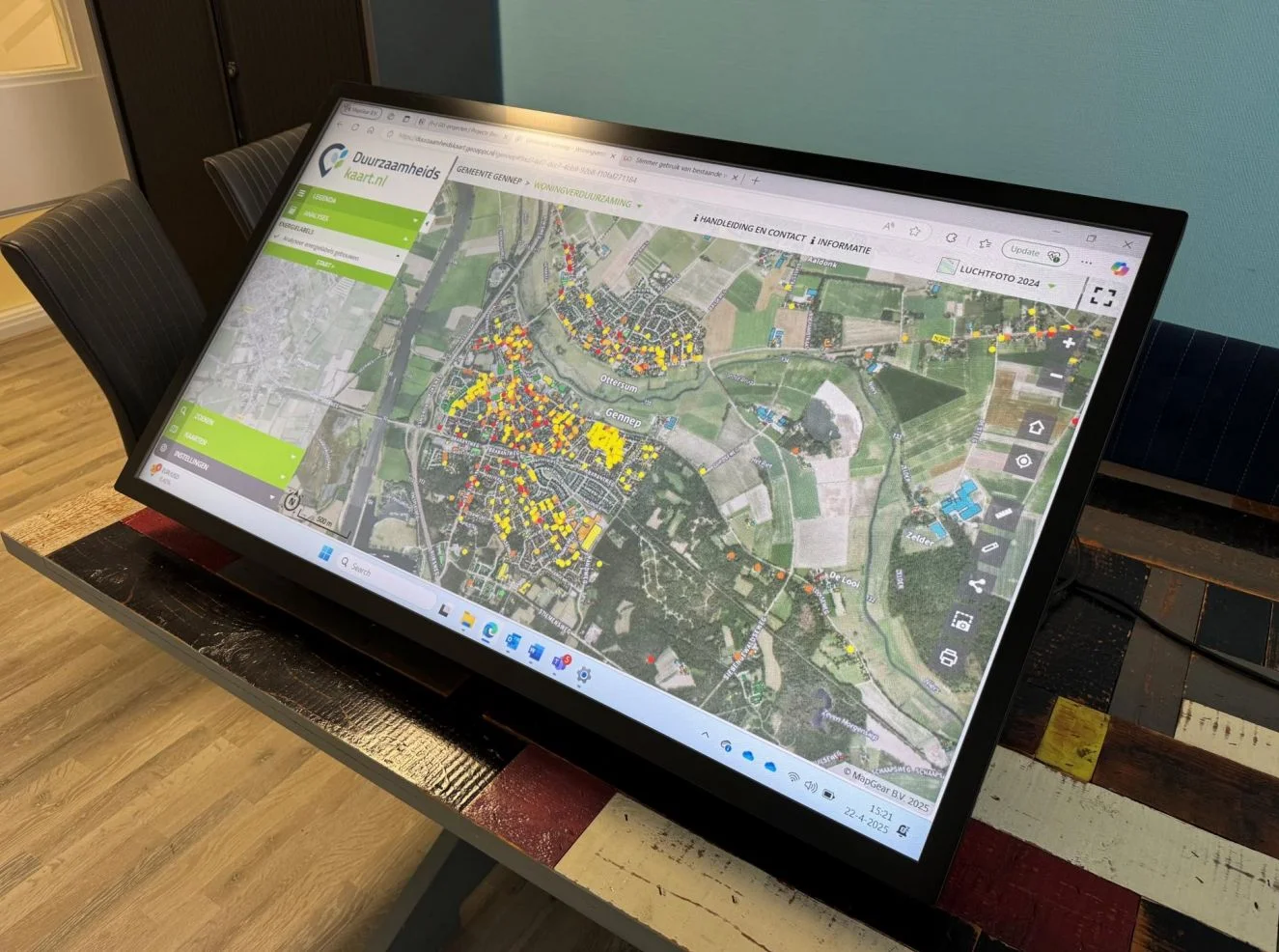
Sustainability
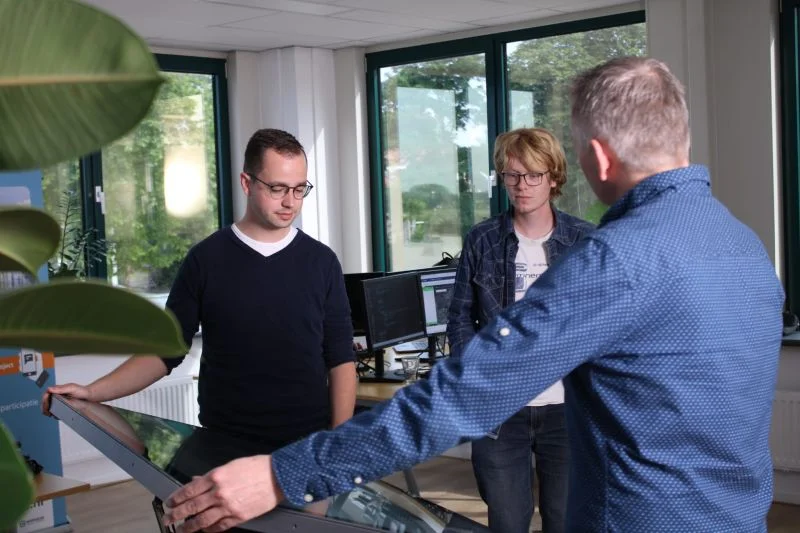
Office Environment
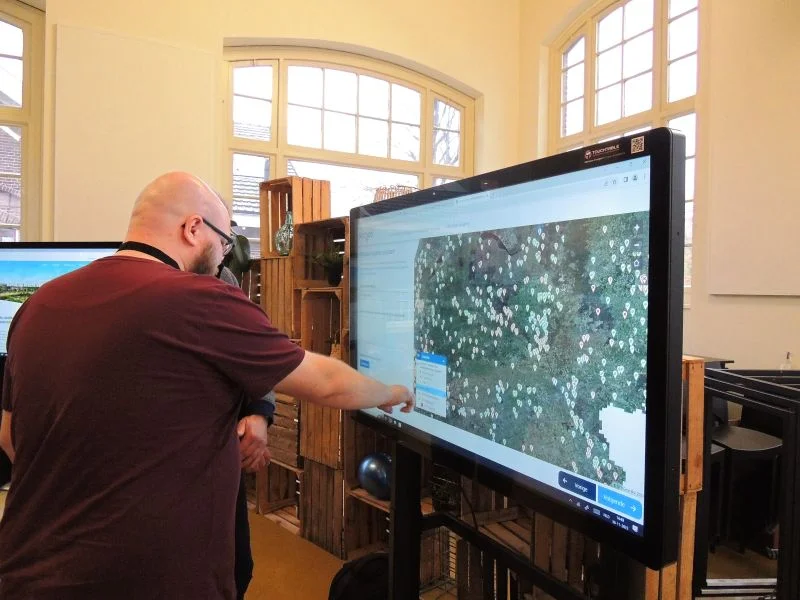
Map Visualization
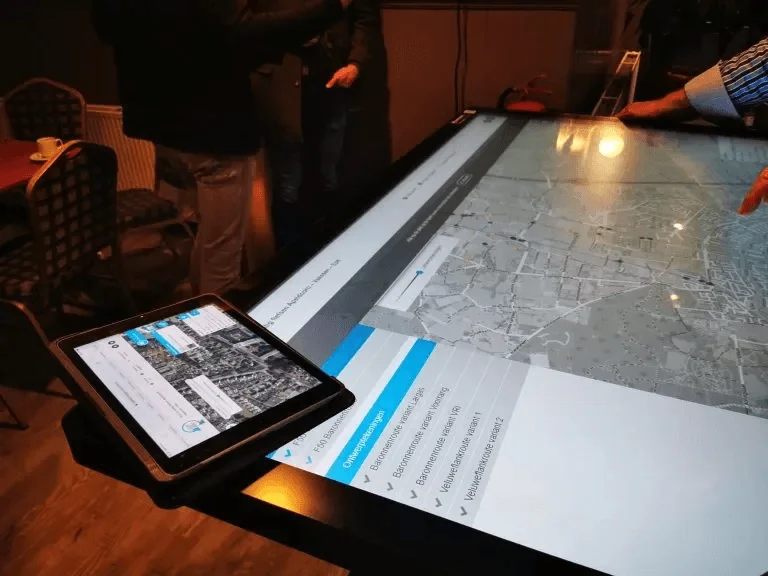
Participation
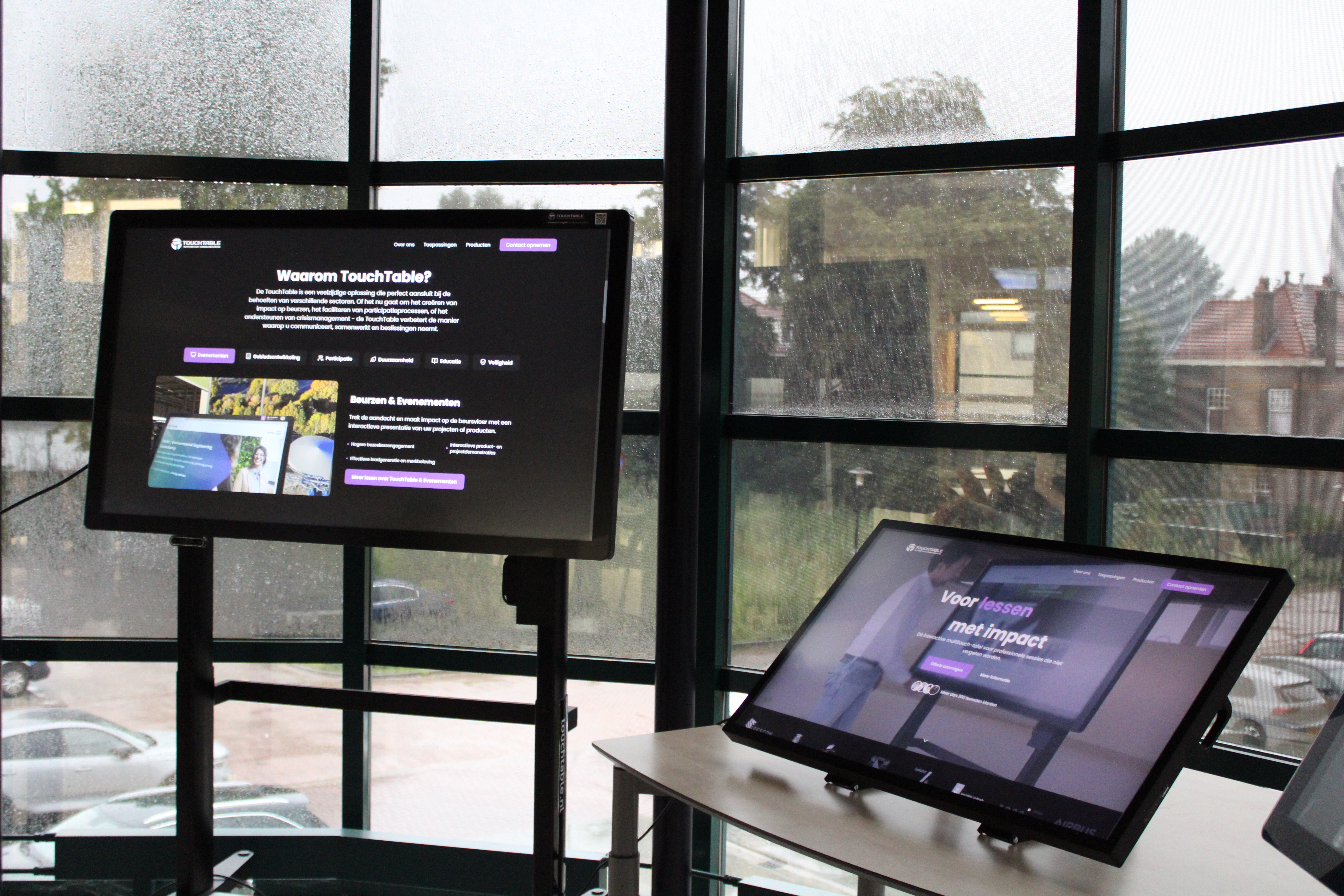
Events
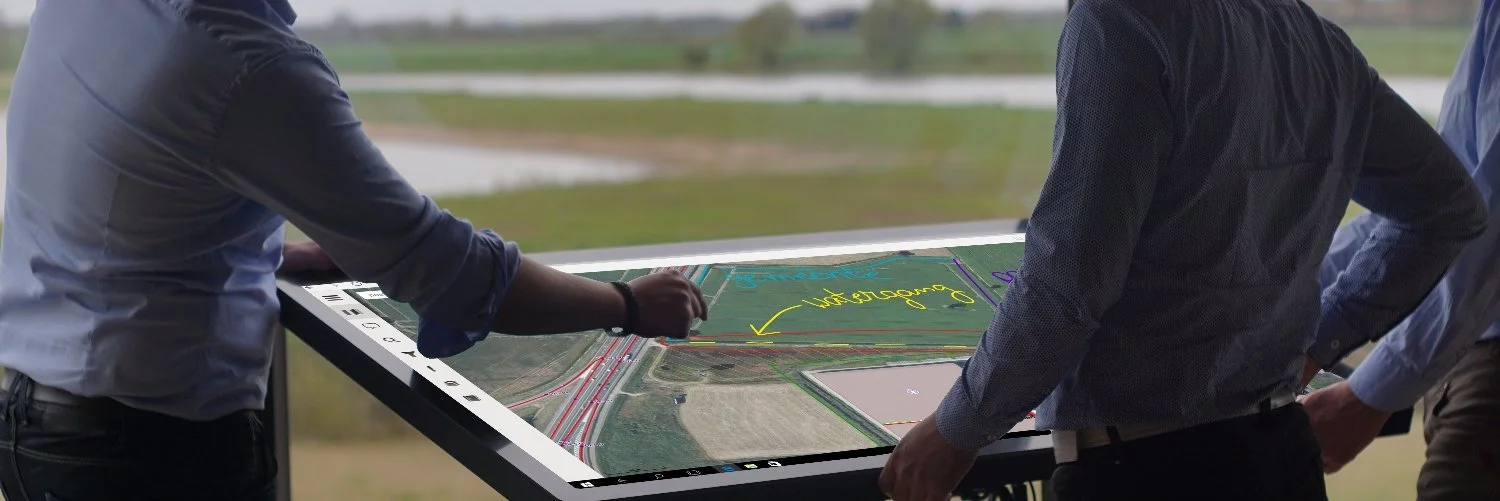
Spatial Planning

Presentations
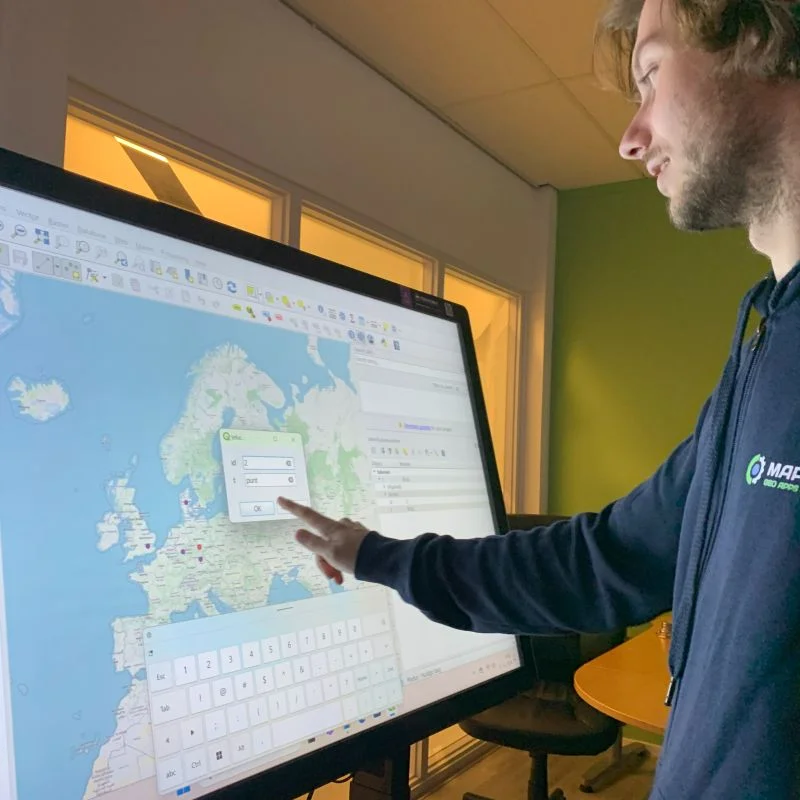
Digital Maps
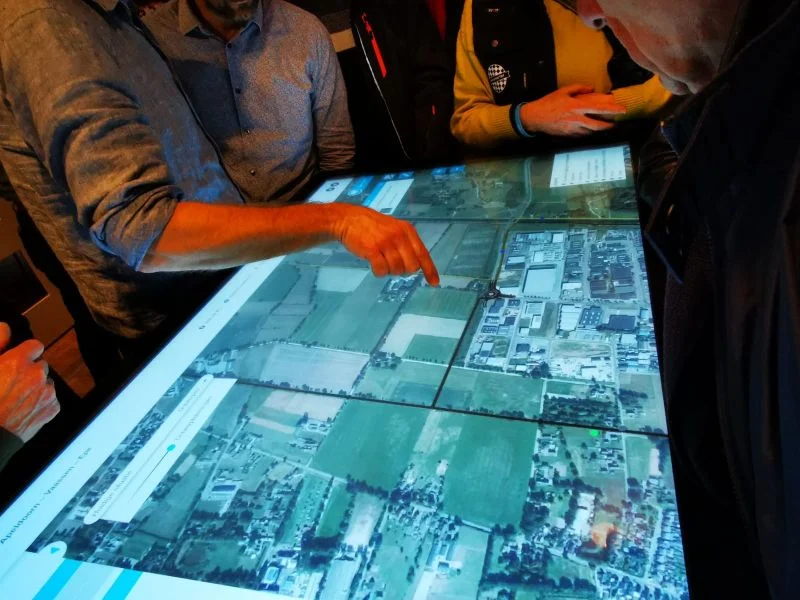
Collaboration
Ready to discover TouchTable?
Transform your presentations, meetings and collaboration with the power of interactive technology. Request a quote today or schedule a demonstration.
Request quote